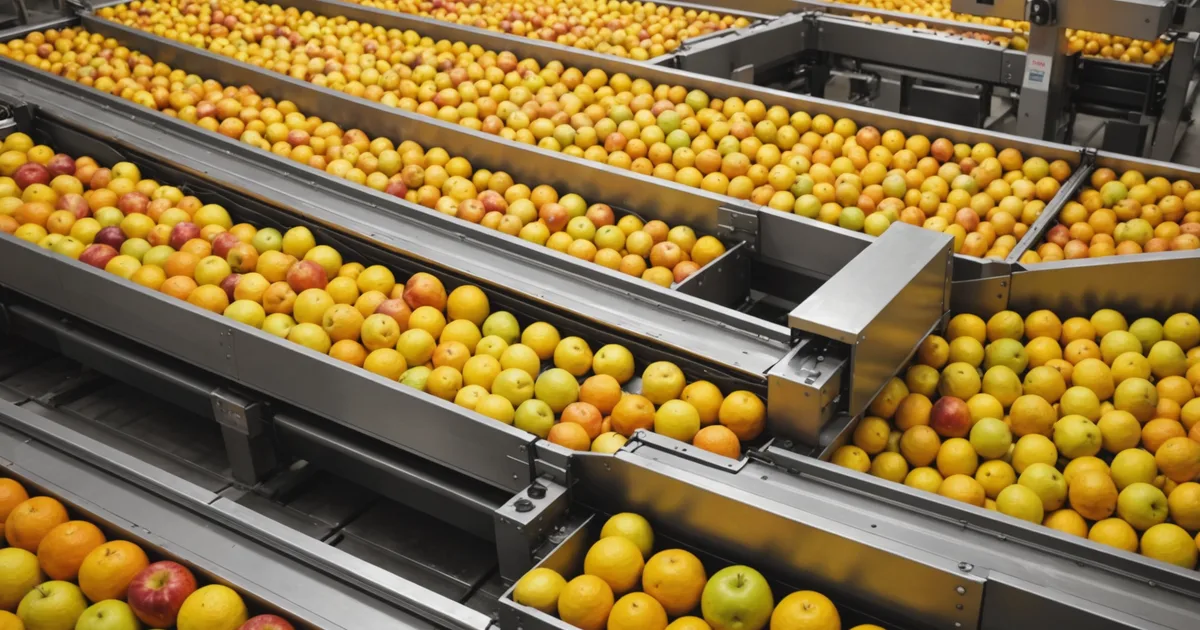
A packing house moving 40,000 to 80,000 kilograms through its sorting line during a peak week cannot spare time for a slow integration. When setup calls for three IT consultants, six weeks of data mapping, and a custom integration project, most facilities will not complete it before the season begins. We designed the integration around that reality after our pilot facility's first onboarding took too long because our documentation assumed equipment and capabilities it did not have.
This guide follows the Ecogear routing integration in the same order you will encounter it during onboarding. It is for the IT coordinator or operations manager doing the setup, rather than someone handling procurement.
Before Setup: The Data AI Needs
The routing model does not require proprietary hardware. It requires interpretable data, specifically:
- Per-batch intake record: crop type, known variety, estimated harvest date, and lot size in kilograms or crate count
- Freshness readings per batch: Brix (sugar content), firmness index from a pressure gauge, or color index from a vision system. At least one is needed for a usable score.
- Ambient temperature in receiving at intake time. One wall-mounted thermometer is enough; environmental sensors on every crate are unnecessary.
Missing fields lower confidence rather than causing a hard failure. When Brix is absent for a batch, the model returns a lower-confidence score from the readings available instead of an error. Regular gaps still reduce the output's usefulness, so setup should aim to capture at least two of the three main freshness indicators consistently.
A fully automated sensor link is not required. Facilities without automated feeds can enter data manually on a tablet or PC at intake, before crates reach the sorting line. This adds time at receiving but does not restrict the routing model's function.
Step 1: Capture Data and Place Sensors
If your facility runs a Compac, MAF Roda, or TOMRA-compatible sorting line, the equipment is already producing the data the routing model requires. Integration consists of exporting that data to the Ecogear dashboard. REST API and scheduled CSV export are both supported.
Without automated sensor output, use at least two manual capture points:
At batch intake: a receiving station where the operator enters crop type, lot ID, estimated harvest date (or days since harvest if date is unknown), and any available sensor readings from a handheld refractometer or firmness tester. This station can be a tablet with the web-based intake form, or a laptop if the intake area has a suitable surface.
At line exit: a count station to close out the batch and record the actual crate count that moved through. This is optional for routing purposes but improves the accuracy of subsequent batch-volume calculations in the dashboard.
When adding sensors during onboarding, install Brix and firmness sensors at the intake conveyor after transport vibration has settled the produce, but before washing or hydro-cooling. Put temperature sensors at receiving-area level and, where there is post-cooling staging, at that stage's exit.
The sensor placement error we see most often is installing the Brix sensor after washing. Water contact changes Brix readings. If washing occurs before grading, measure Brix beforehand, or treat it as unreliable and place more weight on firmness and color index.
Step 2: Link the Data Feed to the Dashboard
For automated sensor links, we supply a lightweight connector for Windows, Linux, or a Raspberry Pi. It reads the sorting line's export, either a REST endpoint or shared database table, and sends batch data to the Ecogear dashboard through HTTPS.
Connector requirements:
- Internet connection. Typical bandwidth is under 5 MB per day at normal throughput volumes.
- Read-only access to the sorting line's data export. The connector does not write to the sorting line system.
- Facility API key provided during onboarding.
After the sorting line export is enabled, connector setup usually takes 30 to 90 minutes for an IT person who has completed it once. Allow half a day for a first installation so the field mapping can be checked.
Field-name mismatches are the most frequent configuration problem. Different sorting-line vendors use different names for the same measurement. A Compac system may name firmness differently from a MAF system, and neither may match the connector's default. Its configuration file includes a mapping section where you identify the output fields for Brix, firmness, color index, and lot ID. We supply mapping guides for Compac and MAF. For other systems, we complete the mapping during onboarding.
Before the onboarding call, find out whether the sorting-line software needs a particular export format enabled by the manufacturer or a local dealer. Some older Compac and MAF installations include the export function but leave it disabled by default. Enabling it may require the dealer, not a setting you can change yourself. If uncertain, ask the person responsible for line maintenance before booking the integration call.
Step 3: Set Up the Dashboard and Alerts
After the connector starts transmitting, batches appear in the dashboard intake queue. Each entry displays the received fields and the freshness-score confidence level as a color band plus a numerical value.
Set the facility profile before going live:
- Crop types: select those your facility processes from the supported list to apply correct crop-specific scoring parameters.
- Coating capacity: enter the maximum crates your facility can treat per shift. The model uses this to set batches for treat-this-shift or treat-next-shift. Too low, it under-flags conservatively; too high, it flags more batches than the coating application team can handle.
- Alert preferences: choose email, SMS, or dashboard-only alerts for batches above the urgency threshold. For the first two weeks, enable all three to confirm alerts reach the right people, then disable redundant channels.
- Urgency threshold: set as a percentile. At 80, the model flags the top 20% of incoming batches by estimated freshness risk. Start at 80 and adjust after the first season. If incoming batches are often high risk, lower to 70 to catch more at-risk volume. If incoming quality is generally high, raise it to 85 or 90.
Step 4: Train Staff
Two separate conversations must take place before go-live, with different purposes and audiences.
The floor conversation: this is with the line supervisor and sorting staff who will act on the dashboard alerts. It is practical and should happen on the floor, next to the line. Cover three things: what the alert means (a score above the threshold indicates a batch the model believes needs treatment this shift), what the action is (set the batch aside for coating before it goes to standard packing), and what to do if the alert contradicts the team's own visual assessment (apply judgment, flag the disagreement in the dashboard's notes field so we can review it). This conversation should take 30 to 45 minutes.
The data quality conversation: this is with whoever enters manual batch data or validates the sensor feed. Cover why accurate harvest date and crop variety entry matters (they change the model's scoring parameters), what happens to the score when fields are left blank (confidence drops, not an error), and how to flag a batch where the incoming data seems wrong. This conversation should include a practice run entering three or four sample batches before go-live.
Do not train the whole facility in one session. Begin with the line supervisor, sorting team lead, and intake data coordinator. Others can learn during the first two weeks of live operation by observing the alert workflow in practice.
At our first pilot facility, we made the mistake of training in a meeting room with a slide presentation. Once the team reached the line, they had not connected the abstract dashboard to the physical crates in front of them. We now train on the floor with the connector active and data moving, using test data on a non-production day when necessary.
Step 5: Go-Live Checks
Check these items before the first treated batch:
Data flow confirmation: at least three test batches have been entered and appeared correctly in the dashboard intake queue. Each test batch shows a confidence level of medium or higher. If all test batches are showing low confidence, check the field mapping in the connector configuration before proceeding.
Alert delivery test: send a test alert to each configured recipient and confirm receipt. Alerts going to email addresses that are not actively monitored during packing shifts are not useful alerts.
Coating application readiness: coating supply for the first week is on site. The application point on the line (spray station or dip line) is calibrated and ready. The staff member responsible for applying coating knows the flagging convention: green = standard processing at normal priority, amber = treat before the end of this shift, red = treat before this batch moves further down the line.
Baseline documentation: record your current average dock rejection rate and average incoming freshness scores for the week before go-live. This baseline is essential for evaluating whether the system is producing the results you expected after the first season. Without it, there is no reference point for comparison.
What to Monitor During the First Two Weeks
Treat the first two weeks as calibration, not as proof-of-concept. The system is adapting to the produce entering your facility while the team learns to use its output. Some friction is expected.
Watch for three specific signals:
Consistently low confidence scores. If the model is producing low-confidence scores for the majority of incoming batches, the data quality issue is systemic, not batch-specific. Check sensor calibration, verify field mapping in the connector, and confirm that the crop type in the dashboard profile matches what the facility is actually running. A mismatch between the selected crop type and the actual produce is the fastest way to produce consistently poor scores.
Staff disagreement with model rankings. This is useful signal, not a failure mode. If your most experienced graders consistently disagree with the model's urgency rankings, document the specific batches and bring them to the four-week review call. Sometimes the model is catching a signal the grader is not yet aware of. Sometimes the model is getting poor sensor input. The pattern of disagreements usually reveals which.
Treatment adherence rate. Are the batches flagged by the model actually getting treated, or is the team falling back to treating everything, or to treating nothing during busy periods? Treating everything defeats the purpose of triage. Treating nothing defeats the purpose of the system. The model's value is in distinguishing which batches genuinely need treatment from which ones are fine without it. If adherence to the recommendations is inconsistent, the training conversation about what the alerts mean needs to be revisited.
See Ecogear on your packing line
Sample kits ship within 14 days of approval. No commercial commitment required.
Request a Sample Kit